Windows 11 Me Screenshot Aur Screen Recording Ka Use – Ek Complete Professional Guide
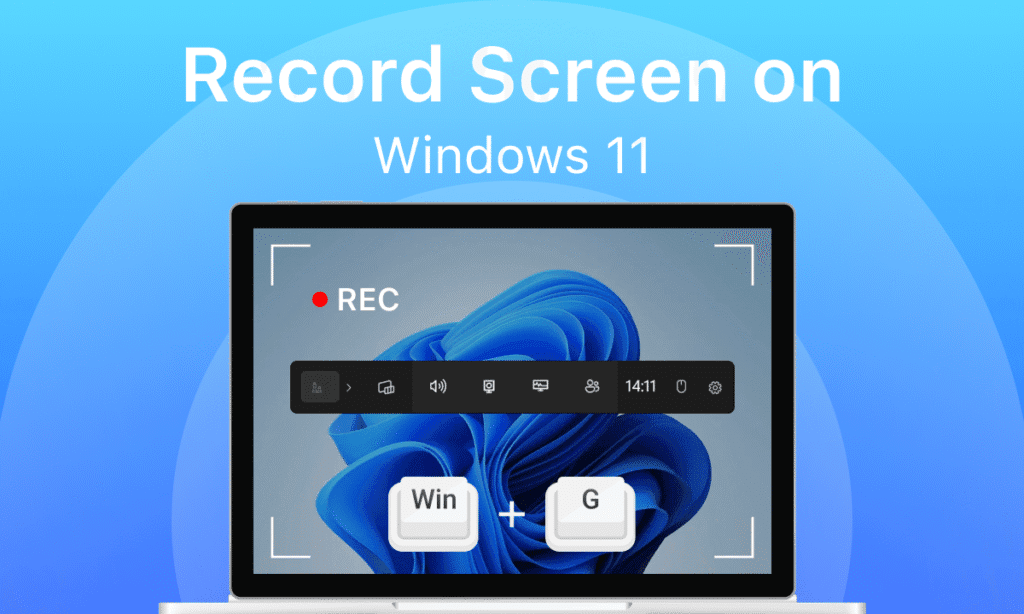
Windows 11 is like that old classic song jise har generation sunte hue aage badhati rahi hai. Microsoft ne apne Operating System ko waise hi nurture kiya hai jaise ek shehar dhire-dhire smart city banata hai—foundation wahi par, features naye. Windows 11 ne computing ka experience sirf modern nahi kiya, balki simplify bhi kiya hai. Yah par design soft hai, icons clean hai, aur operating feel ekdum soothing. Lekin sabse zyada impactful cheez kya hai? Ye ki aapko simple tasks ke liye third-party apps ka sahara nahi lena padta—especially screenshot aur screen recording ke kaam ke liye.
Aaj se pehle log snipping tools, Lightshot, ShareX, Screen Recorder, OBS jaise software install karte the. Lekin Windows 11 ne bola: “Chill bro, hum khud sambhal lenge.” Bas shortcuts aur native apps ke through sab ready.
Chalo ek-ek cheez ko deeply samajhte hain—seedhi baat, no overacting, no time waste.
1. Windows 11 Kya Hai?
Windows 11 Microsoft ka latest operating system hai jo October 2021 me officially launch hua. Ye Windows 10 ka upgraded version hai, jisme performance, security, UI design aur productivity tools sab kuch level-up hai.
Isme sab kuch thoda modern, thoda minimalistic, aur thoda elegant feel deta hai. Rounded corners ho, centered Start Menu ho, ya phir smooth transitions—sab kuch aesthetic vibes deta hai.
Par beauty ke saath-saath brain bhi hai:
- Powerful performance optimization
- Better memory management
- Gaming ke liye DirectStorage support
- Security ke liye TPM 2.0 requirement
- Microsoft Store ka upgraded ecosystem
- 5 Huayuan Image 3.0 AI Photo Editing Prompts for Dreamy Cinematic Portraits with Natural Emotion & Floral Aesthetics.
 70 / 100 Powered by Rank Math SEO SEO Score 12 ChatGPT AI Prompts to Craft Vibrant Cinematic Portraits Full of Emotion 12 AI Prompts for Creating Color-Rich, Emotion-Packed Cinematic Portraits 12 ChatGPT Prompts to Design Striking Cinematic Portraits with… Click for More
 - 15 Powerful Cinematic AI Photo Editing Prompts Cinematic AI Photo Editing Prompts
 86 / 100 Powered by Rank Math SEO SEO Score 12 ChatGPT AI Prompts to Craft Vibrant Cinematic Portraits Full of Emotion 12 AI Prompts for Creating Color-Rich, Emotion-Packed Cinematic Portraits 12 ChatGPT Prompts to Design Striking Cinematic Portraits with… Click for More
 - Indian couple in cinematic Bollywood style, emotional expressions, dramatic lighting, slow-motion effect, romantic movie scene, ultra-realistic, 4K cinematic frame!
 80 / 100 Powered by Rank Math SEO SEO Score 10 Trending Romantic Couple Gemini AI Photo Editor Prompt Copy Paste Ideas for Dreamy Cinematic Edit BY Tezupdate. 12 ChatGPT AI Prompts to Craft Vibrant Cinematic Portraits Full of Emotion… Click for More
 - New Year 2026 Personalized Calendar Design | Best Gemini AI Prompts for Stunning Portrait Images!
 84 / 100 Powered by Rank Math SEO SEO Score New Year 2026 Personalized Calendar Design | Best Gemini AI Prompts for Stunning Portrait Images! 12 ChatGPT AI Prompts to Craft Vibrant Cinematic Portraits Full of Emotion 12 AI Prompts… Click for More
 - NH-31 Four-Lane Elevated Flyover Project Tender Result Announced – Hari Construction Emerges L1 Bidder
 70 / 100 Powered by Rank Math SEO SEO Score NH-31 Four-Lane Elevated Flyover Project Tender Result Announced – Hari Construction Emerges L1 Bidder Project Overview The National Highways Authority of India (NHAI) has officially released the financial bid results… Click for More
 - 12 Best Qwen AI Prompts for Creating Beautiful Boy Portraits on Rattan Swings!
 78 / 100 Powered by Rank Math SEO SEO Score 12 ChatGPT AI Prompts to Craft Vibrant Cinematic Portraits Full of Emotion 12 AI Prompts for Creating Color-Rich, Emotion-Packed Cinematic Portraits 12 ChatGPT Prompts to Design Striking Cinematic Portraits with… Click for More
2. Windows 11 Me Screenshot Kaise Le? (Without Any Third Party App)
Yaha par Windows ne kaam ekdum butter smooth banaya hai. Aapko bas situation ke hisaab se shortcut use karna hai.
a. Poora Screen Screenshot
PrtSc (Print Screen) key
Ye poora screen ka screenshot clipboard me store kar deta hai. Aap chahe to Paint, Word, Photoshop kahin bhi paste kar sakte ho.
b. Direct Screenshot Image File Save Karna
Windows + PrtSc
Isse screenshot automatically Pictures → Screenshots folder me save ho jata hai.
No extra steps. No drama.
c. Specific Part Screenshot (Snip Tool Style)
Windows + Shift + S
Yaha ek overlay pop-up aayega:
- Rectangular Snip
- Freeform Snip
- Window Snip
- Fullscreen Snip
Snip clipboard me save hota hai aur notification ke through aap edit bhi kar sakte ho.
Ye feature literally evergreen hai—clean, quick, headache-free.
d. Active Window Screenshot
Alt + PrtSc
Sirf current window ka screenshot lene ke kaam me perfect.
3. Windows 11 Me Screen Recording Kaise Kare? (Without Installing App)
Windows 11 me Xbox Game Bar naam ka built-in recorder already available hai. Ye feature pehle gamers ke liye banaya gaya tha, par office, training, tutorial aur presentation sab me kaam aa raha hai.
Screen Recording Start Karne Ka Shortcut
Windows + Alt + R
Step-By-Step Method
- Press
Windows + G - Game Bar overlay khul jayega
- Capture widget me Record button dabao
- Jab recording complete ho jaye, Stop dabao
Recording automatically save hoti hai:
Videos → Captures
Limit Note
Game Bar full desktop aur File Explorer ko record nahi karta. Agar full screen record chahiye, to Snipping Tool ka new version bhi screen recording support karta hai (Windows Update ke baad).
Snipping Tool Through Recording
- Snipping Tool open karo
- Video icon select karo
- New dabao
- Area select karo
- Record
Bas ho gaya—no OBS, no Bandicam, no shady download links.
4. Screenshot Aur Screen Recording Ka Fayda
| Feature | Fayda | Kyu Useful Hai |
|---|---|---|
| Screenshot | Quick Reference Save | Data, chat, transactions ka proof maintain hota hai |
| Snipping Tool | Custom Area Capture | Sirf relevant hissa save hota hai |
| Windows+PrtSc | Auto Save Image | Documentation & Reporting ke liye perfect |
| Xbox Game Bar Recording | Tutorial / Training / Meetings Record | Education, Office & Gaming sab me kaam aata hai |
| No Third Party Apps | Secure System | Malware, ads, data theft ka risk nahi |
Iska mtlb: System clean, secure, aur efficient rehta hai.
Hamari generation ka funda bhi simple hai:
Extra apps = extra clutter.
Native tools = smooth workflow.
5. Practical Real-Life Uses
- Office me presentation explain karna
- Client ko step-by-step guidance dena
- Software bugs report karna
- Students ke liye online classes record karna
- Gamers ke liye highlight moments save karna
- YouTube tutorial creators ke liye quick recording setup
Ye features sirf technical logon ke liye nahi, har roz ke normal tasks ke liye bohot kaam aate hain.
6. Conclusion
Windows 11 ne screenshot aur screen recording ko itna natural bana diya hai ki ab third-party apps install karna ek outdated habit lagta hai. System ke andar jo tools diye gaye hai—wo reliable, clean, secure aur ekदम efficient hain.
Hume sirf commands aur shortcuts thoda yaad rakhne hai. Baaki system khud sambhal lega.
Is generation ke kaam ka mantra simple hai:
Smart kaam karo, unnecessary cheeze mat banao load.
Windows 11 ka message bhi yahi hai—
“Technology tabhi achhi jab wo aapke saath chalna sikh jaaye, na ki aapko use chase karna pade.”