
Introduction
Whether you use a computer for work, study, gaming, or everyday browsing, knowing a few basic computer tricks can save you hours of frustration. Many common PC problems have surprisingly simple solutions, yet most users overlook them until something goes wrong.
From fixing slow performance to recovering deleted files and protecting important documents, these practical tips can make your computer faster, safer, and easier to use. The best part is that you don’t need to be a technical expert to apply them.
In this guide, we’ll cover 7 essential computer tips that every Windows and Mac user should know in 2026. These habits will improve productivity, reduce technical issues, and help you use your computer more efficiently.
Why These Computer Tips Matter
Technology has become an essential part of everyday life. A few smart habits can:
- Improve computer performance
- Save valuable time every day
- Reduce the risk of losing important files
- Help troubleshoot common issues quickly
- Increase productivity at work and school
- Make your computer more secure
Even experienced users follow these best practices regularly.
#### 1. Restarting Actually Fixes More Problems Than You Think
One of the simplest yet most effective troubleshooting methods is restarting your computer.
Many software glitches occur because background processes become overloaded or system memory gets filled with temporary data. Restarting clears these temporary processes and reloads the operating system.
A restart often fixes:
- Slow computer performance
- Wi-Fi connection problems
- Frozen applications
- Printer issues
- Bluetooth connectivity errors
- Audio problems
- High RAM usage
- Minor Windows update issues
Instead of immediately searching for complicated fixes, restart your PC first. It often solves the problem within minutes.
#### 2. Keep Your Desktop Clean
Your desktop is not designed to store hundreds of files.
Too many icons increase visual clutter and can also slow the desktop loading process during startup.
A better approach is to organize files into folders such as:
- Work
- Documents
- Photos
- Projects
- Downloads
- Screenshots
Using folders makes it easier to locate files and keeps your workspace clean.
Pro Tip: Clean your desktop once a week and delete unnecessary screenshots or duplicate files.
#### 3. Ctrl + Z Is Your Best Friend
Everyone makes mistakes while using a computer.
You may accidentally:
- Delete a paragraph
- Move the wrong file
- Remove an image
- Change formatting
- Type over existing content
Instead of panicking, simply press:
Windows: Ctrl + Z
Mac: Command + Z
This shortcut instantly undoes the last action in most applications including:
- Microsoft Word
- Excel
- PowerPoint
- Photoshop
- Canva
- Browsers
- File Explorer
Learning this shortcut alone can save countless hours.
#### 4. Search Google Smarter
Many people search using very general phrases.
Instead of searching:
My screen is black
Search something more specific like:
- Windows 11 black screen after login
- Laptop screen black after startup
- HP laptop won’t boot after update
- Dell Wi-Fi disconnecting after sleep mode
- Chrome crashing on Windows 11
Specific searches usually provide much more accurate solutions.
Reliable sources include:
- Official Microsoft Support
- Official Apple Support
- Manufacturer support websites
- Reddit communities
- Trusted technology forums
Being specific saves time and helps you find the correct fix faster.
#### 5. Always Keep a Backup
One of the biggest mistakes users make is assuming their computer will never fail.
Unfortunately:
- Hard drives fail.
- SSDs can become corrupted.
- Malware can encrypt files.
- Accidental deletion happens.
- Windows updates occasionally create problems.
The easiest solution is automatic backup.
Popular cloud backup services include:
- Microsoft OneDrive
- Google Drive
- Dropbox
- Apple iCloud
You should also consider keeping an external hard drive for offline backups.
A good backup strategy follows the 3-2-1 Rule:
- 3 copies of important files
- 2 different storage devices
- 1 backup stored off-site or in the cloud
This greatly reduces the risk of permanent data loss.
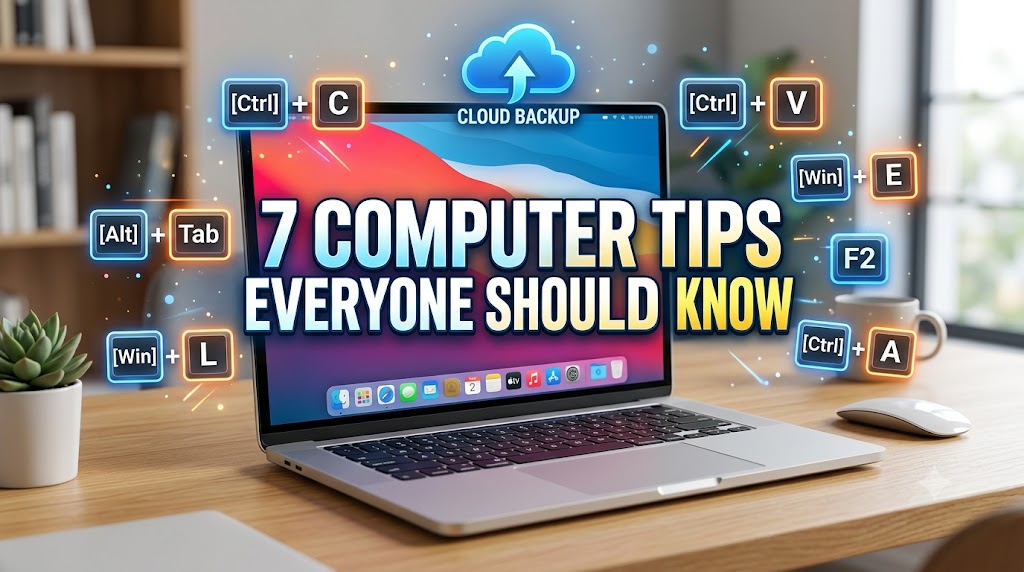
#### 6. Learn Keyboard Shortcuts
Keyboard shortcuts dramatically improve productivity.
Here are some of the most useful ones:
| Shortcut | Function |
|---|---|
| Ctrl + Z | Undo |
| Ctrl + C | Copy |
| Ctrl + V | Paste |
| Ctrl + X | Cut |
| Ctrl + A | Select All |
| Ctrl + S | Save |
| Ctrl + Shift + T | Reopen Closed Browser Tab |
| Alt + Tab | Switch Between Open Windows |
| Windows + L | Lock Your Computer |
| Windows + Shift + S | Take Screenshot |
Using just a few shortcuts every day can save several minutes, which adds up to hours over a month.
#### 7. It’s Okay Not to Know Everything
Technology changes constantly.
Even IT professionals regularly search online for answers.
Learning technology is a continuous process.
Don’t hesitate to:
- Ask questions
- Watch tutorials
- Read documentation
- Experiment safely
- Practice new skills
The more you explore, the more confident you’ll become.
Remember, every computer expert started as a beginner.
Expert Tips for Better Computer Performance
To keep your computer running smoothly:
- Install Windows updates regularly.
- Keep antivirus software updated.
- Remove unused applications.
- Restart your PC at least once every few days.
- Avoid downloading software from unknown websites.
- Keep at least 20% of your storage free.
- Update hardware drivers when necessary.
Common Mistakes to Avoid
Many users unknowingly reduce their computer’s performance by:
- Never restarting the computer
- Keeping hundreds of files on the desktop
- Ignoring software updates
- Never backing up important files
- Installing unnecessary applications
- Clicking suspicious links
- Using weak passwords
Avoiding these habits can significantly improve your computing experience.
Important Tools
| Tool | Purpose |
|---|---|
| OneDrive | Cloud Backup |
| Google Drive | File Storage |
| Dropbox | Backup & Sharing |
| Snipping Tool | Screenshots |
| Windows Security | Built-in Antivirus |
Frequently Asked Questions
Q1. Why does restarting fix many computer problems?
Restarting clears temporary memory, resets background processes, and reloads the operating system, which often resolves minor software issues.
Q2. Does a messy desktop slow down a PC?
A heavily cluttered desktop can increase startup time and make file management more difficult, although the effect varies depending on the operating system and hardware.
Q3. What is the most useful keyboard shortcut?
Many users find Ctrl + Z (Undo) one of the most valuable shortcuts because it quickly reverses accidental actions.
Q4. How often should I back up my files?
Important files should be backed up automatically whenever possible. Cloud services that sync continuously are a convenient option.
Q5. Are Google search results always reliable for troubleshooting?
Not always. Prioritize official support documentation, reputable technology websites, and well-established user communities, and verify advice before making significant system changes.
Author Insight
Good computer habits are often more valuable than complex technical knowledge. Simple practices like restarting your PC, organizing files, backing up data, and learning keyboard shortcuts can prevent many everyday problems. Building these habits gradually will help you work more efficiently and with greater confidence over time.
Related Posts
7 Computer Tips Everyone Should Know in 2026: Simple Tech Tricks That Save Time and Prevent Problems
Introduction Whether you use a computer for work, study, gaming, or everyday browsing, knowing a few basic computer tricks can … 7 Computer Tips Everyone Should Know in 2026: Simple Tech Tricks That Save Time and Prevent ProblemsRead more




Join Our WhatsApp Channel
Stay updated with the latest tech tips, AI guides, and computer tutorials:
हमसे जुड़ें — सबसे पहले जानकारी पाएं
Latest tech tips, tricks & tutorials — direct aapke inbox mein
Conclusion
Mastering computers doesn’t require advanced technical knowledge. By following these seven practical tips—restarting when problems occur, keeping your desktop organized, using keyboard shortcuts, searching more effectively, backing up your files, and maintaining a willingness to learn—you can avoid many common frustrations and become a more confident computer user. Start applying one or two of these habits today, and you’ll notice the benefits in both productivity and reliability.


Leave a Reply